
01 Short answer: what Google Ads Editor is for
Google Ads Editor is a free desktop application from Google that lets you edit campaigns offline and make bulk changes across many campaigns, ad groups, and keywords at once, then apply them to the account with a single upload. Google's official description of the tool is in its help center: About Google Ads Editor.
The tool makes sense when edits touch dozens or hundreds of elements at once — say, changing bids across a group of campaigns, finding and replacing text in ads, or adding negative keywords in bulk. For a quick fix to a single campaign, the web interface is usually faster and more convenient.
02 When Ads Editor actually saves time
Ads Editor doesn't speed things up in every case — it helps in specific scenarios where the scale of the change justifies switching out of the web interface into a separate application.
- bulk changes to bids or budgets across dozens of campaigns at once, instead of opening each campaign individually;
- find-and-replace text across hundreds of ads at once — for example, when a promotion name or seasonal offer changes;
- copying a campaign structure (ad groups, keywords, ads) into a new campaign or a new account;
- adding large negative keyword lists at once at the account level or across several campaigns.
03 How the workflow is structured
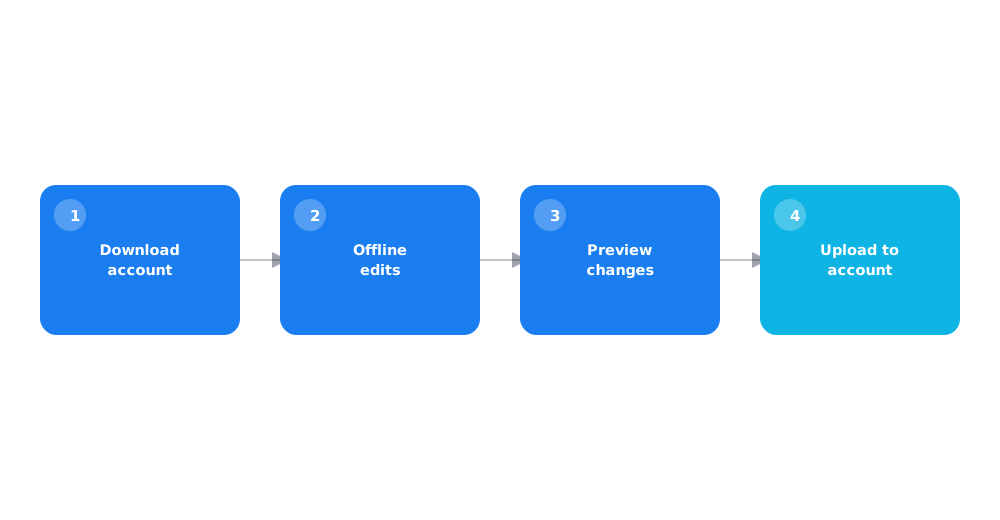
Working in Ads Editor revolves around four repeating steps, and understanding that cycle is key to not losing changes or accidentally uploading something wrong to the account.
First, the account (or selected campaigns) gets downloaded to the computer as a local copy. All edits are made to that local copy offline — no internet is needed for the editing itself. Before sending changes, Ads Editor shows a preview of every edit, which lets you check them before they're applied. Only after confirming does it publish the changes to the account in a single upload. The first steps in the app are described in detail in the official guide Get started with Google Ads Editor.
04 Bulk edits: find-and-replace and multi-row selection
The main strength of Ads Editor is the ability to select many elements at once and apply a single action to them, instead of repeating it manually for every ad or keyword.
- Find and replace. Lets you swap a specific piece of text across every selected ad, headline, or description at once — for example, updating a promo price mentioned in dozens of ads.
- Multi-row selection. In the table view, you can select dozens of campaigns, groups, or keywords at once and change a shared parameter — bid, status, budget — for every selected row simultaneously.
- Copy and paste across campaigns. Ad groups and keywords can be copied from one campaign into another, or into several new campaigns at once, which speeds up scaling a structure that already works.
05 Importing data from Excel and other formats
For truly large changes — say, uploading hundreds of keywords with new bids — Ads Editor supports importing data from external files rather than manual editing in the table alone.
A campaign, ad group, keyword, and ad structure can be prepared in a spreadsheet (Excel or Google Sheets, for example), exported to a supported format, and imported into Ads Editor. Google's official guide to downloading campaigns, keywords, targeting, and ads via files is Download selected campaigns, keywords & targeting, ads, and ad assets. This approach is especially useful when a campaign structure is generated programmatically from a product feed or a large query list.
06 Reviewing changes before uploading
Bulk changes are both Ads Editor's biggest advantage and its biggest source of risk — one mistake in a find-and-replace rule can touch hundreds of ads at once.
- always open the Preview changes window before uploading and confirm that the list of affected elements matches what was expected;
- when using find-and-replace, test the rule on a small sample first rather than the whole account at once;
- after the first upload, re-check a few of the affected ads and campaigns in the web interface to confirm the end result actually looks correct.
07 Common mistakes when working with Ads Editor
Most problems with Ads Editor come down not to the tool itself, but to how it's used — especially early on, before the habit of reviewing bulk edits before uploading has taken hold.
- Uploading changes without previewing them. Skipping the review step is the most common reason a bulk edit ends up touching the wrong elements.
- Working from a stale local copy. If the account was changed in the web interface while editing was happening in Ads Editor, the local copy can conflict with the account's current state — refresh the copy before starting new edits.
- An overly broad find-and-replace rule. Replacing a short piece of text without narrowing the context can accidentally affect ads that weren't supposed to change.
Bulk find-and-replace is especially useful when the same headline needs updating across dozens of ads at once; the formulas behind those headlines themselves are covered in ad copywriting: headline formulas.
08 FAQ
How is Google Ads Editor different from the regular web interface?
Ads Editor lets you make changes offline and apply them across many campaigns in a single bulk operation, while the web interface is better suited to quick, real-time edits.
Is Google Ads Editor paid?
No, it's a free application from Google, downloaded to a computer separately from the ad account itself.
Can I work in Ads Editor without an internet connection?
Yes, editing the local copy of the account happens offline — internet is only needed to download the account at the start and upload changes at the end.
How do I avoid mistakes with bulk find-and-replace?
Test the rule on a small sample of ads first, then always open the changes preview before uploading and confirm that only the intended elements are affected.
Can I import campaigns from Excel into Ads Editor?
Yes, a campaign, keyword, and ad structure can be prepared in a spreadsheet, exported to a supported format, and imported into Ads Editor for bulk upload.
What if the account was changed in the web interface while I was working in Ads Editor?
Download a fresh copy of the account into Ads Editor before making further edits, to avoid a conflict between local changes and the account's current state.