
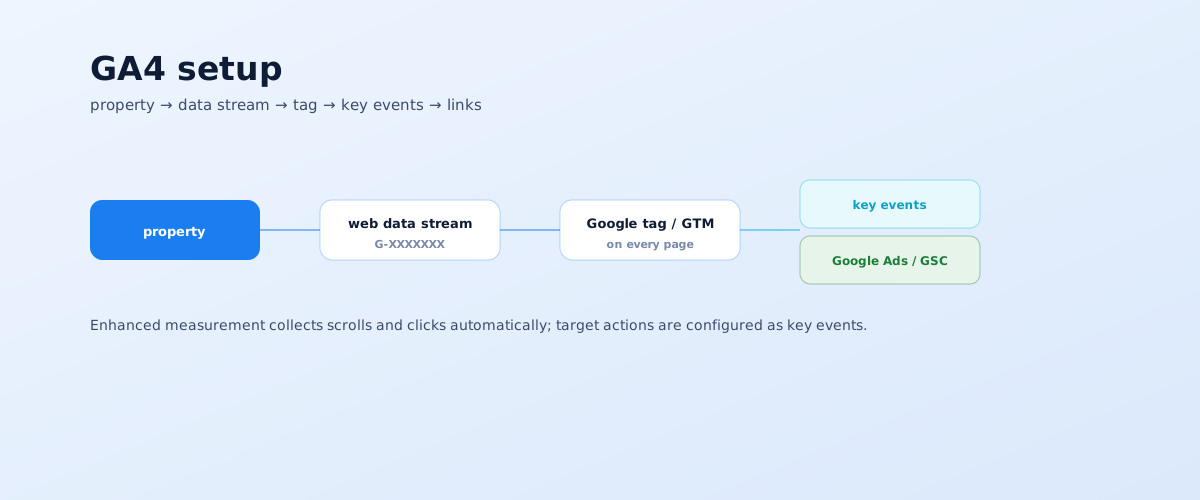
Google Analytics 4 is a free tool you can't do without if you want to know which channels bring customers and whether ads pay off. Universal Analytics is off, so GA4 is set up from scratch rather than "instead of" it. Below is a step-by-step setup: from creating a property to key events, ad links, and verification.
01 What GA4 is and what changed
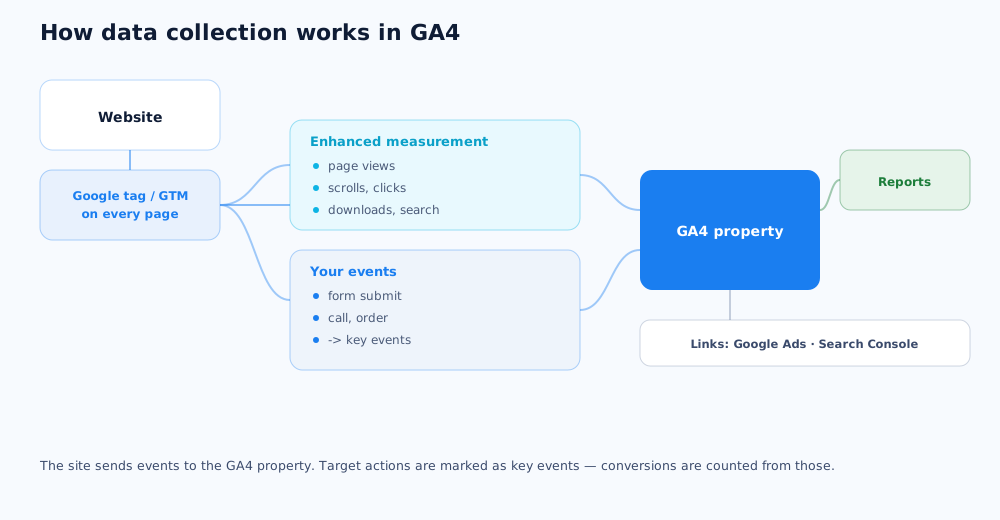
GA4 is built on an event model: every user interaction — a page view, a click, a scroll, a form submit — is a separate event with parameters. That's different from Universal Analytics, where data was grouped into sessions and hits. In practice it means setup isn't "install the tag and done" but describing the events you care about correctly.
What to know before you start:
- Universal Analytics is off and collects no new data — migration is no longer needed, GA4 is set up on a blank slate;
- what used to be called "conversions" is called "key events" in GA4;
- GA4 collects some events automatically if you enable enhanced measurement — but target actions almost always need extra configuration.
The steps ahead: create a property, install the tag, adjust the base settings, define key events, and link GA4 to your ads.
02 Creating a property and a data stream
A property is a container that holds one project's data. Inside a property you create a data stream — the source events come from: a website or an app.
The steps, per Google's official instructions:
- create an Analytics account if you don't have one;
- create a property: name, reporting time zone, and currency — best not changed later;
- add a "Web" data stream: enter the site's primary URL and a stream name;
- enable enhanced measurement so GA4 collects scrolls, outbound clicks, downloads, and site search on its own;
- copy the Measurement ID (format
G-XXXXXXX) — it's in Admin → Data streams → stream details.
The Measurement ID is what links the code on the site to your property. One data stream per domain; subdomains usually feed the same stream.
03 Installing the tag: directly or via GTM
There are three ways to connect GA4 to a site. The choice depends on how complex your analytics are and whether you have access to the code.
Directly: the Google tag in the code
The full Google tag code goes in the <head> section of every page. It's the fastest method and suits simple sites that need only basic tracking and one or two target actions.
Via Google Tag Manager
In a GTM container you create a "Google tag" tag with your Measurement ID, then configure events and triggers through the interface without editing site code. It's more flexible: handy when there are many events, the logic is complex, or the site has several tags (pixels, call tracking, chat).
Via a CMS integration
WordPress, Tilda, Shopify, and other platforms let you paste the Measurement ID or tag into a dedicated field in settings. It's a compromise between speed and control — good if you'd rather not touch code and event requirements are light.
04 Base settings after installation
GA4 works right after installation, but with default settings the data is incomplete and noisy. A few settings are worth fixing on day one.
What to configure:
- Data retention — 2 months by default; change it to 14 in Admin → Data retention;
- Internal traffic filter — add your IP and the team's so staff visits don't skew stats;
- Unwanted referrals list — exclude payment-provider and your own service domains from referral sources;
- Consent — if the site has a cookie banner, configure passing the consent status (Consent Mode);
- Access — grant roles to the team and contractors via Access Management.
These changes don't show in reports directly, but their absence is exactly why data later "doesn't match" the ad platforms.
05 Key events (conversions)
A key event is an action that matters to the business: a submitted form, a call, a completed order. Channel and ad performance is judged by key events, so configuring them is the most important part.
How it works, per Google's documentation on key events: the desired action must be recorded as an event first, then you mark that event as a key event.
- Event from existing data — if the action is already visible in GA4 (e.g. a visit to a "thank you" page), the event is created from it without code;
- Event via GTM — for button clicks, form submits, and calls, configure a trigger and tag in the container;
- Marking it key — in Admin → Key events, switch the event to key status;
- Parameters — add useful detail to the event: form type, order value, lead source.
Only real business actions become key events, not scrolls or time on site. What the metrics calculated from these events mean — ROAS, CPL, CPA — is covered in the article on ROAS, ACoS, CPL, and CPA.
06 Links: Google Ads, Search Console, campaign tagging
GA4 comes into its own only in combination with other services: on its own it shows on-site behaviour but doesn't tie it to ad spend or search queries.
- Google Ads link — in Admin → Product links; after that, GA4 key events import into Ads as conversions and GA4 audiences are available for targeting;
- Search Console link — adds a report with organic queries and positions to GA4; how to track positions separately is in the article on checking your site's rankings;
- Campaign tagging — all paid and newsletter traffic must arrive with UTM parameters, or GA4 files it under the "Unassigned" channel; how to tag without mistakes is in the piece on UTM parameters.
If you're still setting up ads, the steps inside the Google Ads account are covered separately — how to set up Google Ads yourself.
07 Ecommerce events, reports, and verification
For an online store, the base setup isn't enough: you need to track the steps of the purchase funnel, which is a separate event schema.
What to configure and what to watch:
- Ecommerce events —
view_item,add_to_cart,begin_checkout,purchasewith product parameters; sent via the data layer and GTM; - Reports for the business — Traffic acquisition (where they come from), Engagement (what they do), Monetisation (what they buy), Conversion paths (which channels are in the chain);
- Verification — the Realtime report, DebugView for events, and a test lead or test order from start to finish.
How ecommerce SEO — which needs this analytics — works is covered in the separate guide. Setting up end-to-end analytics can be delegated — it's part of the work across all channels.
Audiences built in GA4 are used not only for reports but for retargeting and remarketing in Google Ads.
Linking GA4 is only one item on the list — a full Google Ads account audit checklist also covers account structure, ads, and bids.
After setting up GA4, the logical next step is deciding exactly which metrics to track for each campaign; the breakdown by funnel stage is in KPIs for paid search and social ads.
Properly configured analytics is the foundation for any AI-generated report; an overview of how AI already helps with SEO, analytics included, is in a separate article.
Configured GA4 events are the foundation not just for regular conversions but for passing calls too; how to connect ads, site, and calls into one system is covered in cross-channel analytics and call tracking.
The same analytics setup is needed to judge video ads — how to measure YouTube campaign results beyond raw views is covered in a separate article.
08 Frequently asked questions
How do I install GA4 on a website?
Create a property and a web data stream in the Google Analytics interface, copy the Measurement ID (format G-XXXXXXX), and add the Google tag one of three ways: paste the ID into a CMS field (WordPress, Tilda, Shopify), place the full tag code in the site head, or connect it via Google Tag Manager. After installation, data appears in the Realtime report within about 30 minutes.
How is GA4 different from Universal Analytics?
GA4 is built on an event model: any interaction — a view, a click, a form submit — is an event with parameters, not a set of hits inside a session. Universal Analytics is off and collects no new data, so migration is no longer relevant — GA4 is set up from scratch. Another difference: what used to be called "conversions" is called "key events" in GA4.
Do I need Google Tag Manager for GA4?
Not necessarily. For a simple site, installing the Google tag directly in the code is enough. GTM helps when there are many events, the logic is complex, or you don't want to edit the site code each time: tags and triggers are configured through the interface. For an online store with ecommerce tracking, GTM is practically required.
How do I set up conversions in GA4?
In GA4 conversions are called key events. First the desired action must be recorded as an event (a form submit, a call, an order), then you mark that event as a key event in Admin → Key events. The event can be created from data you already collect without code, or configured through Google Tag Manager.
How do I check that GA4 is working?
Three ways: the Realtime report should show you as an active user; DebugView in debug mode shows specific events and their parameters; the Tag Assistant extension confirms the Google tag fires on pages. To check key events, walk through to the target action and confirm the event appears in DebugView.
How do I link GA4 to Google Ads?
In Admin → Product links → Google Ads links, connect the ad account. After that, GA4 key events can be imported into Google Ads as conversions and GA4 audiences can be used for targeting, and GA4 reports show ad cost and click data.